


RICE Sensitivity Analysis: When Product Rankings Change

Windows 11 ARM in VMware Fusion: Compatibility Lab
Keyboard accessibility is often evaluated through a deceptively simple question: can someone use a website without touching a mouse? The question is useful, but it becomes more meaningful when it is connected to actual tasks. Reaching a navigation link, opening an article, controlling audio playback, correcting a form error, and leaving an assistance panel are different interactions. A page can support most of them and still contain a component that prevents a keyboard-only visitor from continuing.
I wanted to examine that distinction through a keyboard accessibility audit of a production web interface. Rather than relying on an automated accessibility score or assuming that a functional-looking page was accessible, I documented a manual walkthrough of common user tasks using keyboard input. The aim was to identify which workflows could be completed, where focus behavior became difficult to understand, and whether any interaction required a pointing device.
The evaluation covered navigation, search, content cards, article tools, cookie preferences, contact form interactions, and an assistance panel. Most of the tested tasks were completed successfully with a keyboard. However, one assistance component introduced a significant problem: once opened, the operator could not navigate its controls or leave it using Tab, Shift+Tab, or Escape. Returning to normal interaction required a mouse or touch input.
That finding matters because accessibility is not an average of independent successes. A working search field does not compensate for a keyboard trap elsewhere. Similarly, successful form submission does not establish that every label, role, state, or error message is programmatically available to assistive technology.
This article presents the test procedure, the recorded observations, the relevant WCAG 2.2 criteria, and the difference between a successful keyboard task and a broader accessibility conformance claim. It also explains how the blocking interaction should be investigated and how a corrected component could be validated through a controlled retest.
The tested interface is not publicly identified. Its domain, ownership, implementation platform, and internal component names are intentionally withheld. The evaluation was authorized, but it was not an independent third-party certification. The observations are based on a single operator-reported manual test session, not on a multi-participant accessibility study or a complete technical inspection.
Research Brief: A Task-Based Keyboard Accessibility Audit
Research question: Which common workflows in a production web interface can be completed without a pointing device, and where does keyboard-only interaction break down?
Working hypothesis: A web interface can provide successful keyboard access to its primary navigation, content, and form workflows while still containing an isolated component that blocks further keyboard use.
Method: One authorized manual keyboard-only walkthrough covering 14 defined test areas across content, navigation, communication, and interface assistance.
Primary observation: The tested navigation and communication workflows were reported as successful. An assistance panel prevented the operator from navigating or exiting with the tested keyboard commands.
Evidence status: Firsthand operator-reported observations recorded during the test session. No screen recording, independent replication, DOM inspection, accessibility-tree inspection, or automated audit is available for this report.
Conformance boundary: This is a focused functional audit, not a declaration that the interface conforms to WCAG 2.2 at Level A, AA, or AAA.
Why Keyboard-Only Testing Deserves Its Own Evaluation
Keyboard accessibility is essential for people who cannot use a mouse reliably, people who operate computers through alternative input devices, and many people who navigate web content with assistive technology. It also provides a practical way to expose interaction failures that may remain invisible during pointer-driven testing.
The W3C explanation of WCAG 2.2 Success Criterion 2.1.1, Keyboard, requires functionality to be operable through a keyboard interface, subject to a narrow exception for inherently path-dependent input. Ordinary links, buttons, forms, navigation controls, and closing a panel do not become exempt merely because their original implementation assumed mouse interaction.
But keyboard operability is not one indivisible property. It is possible for a user to reach a control without being able to activate it, activate a component without being able to navigate inside it, or navigate inside a component without being able to leave it.
That is why I prefer task-based observations over a single statement such as “keyboard navigation works.” Each meaningful task needs an expected outcome, a tested interaction path, and a record of what actually happened.
Three Different Questions About Accessibility
The first question is whether a control can receive keyboard focus. The second is whether the control can perform its intended function using the keyboard. The third is whether the resulting workflow remains usable, including any subsequent focus movement, error recovery, or exit action.
A button that receives focus but cannot be activated is not functionally keyboard-operable. A dialog that opens successfully but cannot be closed can interrupt the remainder of a session. A form that accepts input but offers no understandable recovery after validation failure may prevent users from completing their task.
The same distinctions apply when testing a complex article interface. Being able to open a table of contents is only the beginning. The user must also be able to select a section, reach the intended destination, and continue navigating from there.
What Keyboard Testing Cannot Establish by Itself
A successful keyboard-only walkthrough does not guarantee that controls expose correct accessible names, roles, states, or descriptions. It does not prove that headings are semantically correct, that alternative text is meaningful, that colors meet contrast requirements, or that a screen reader announces every change properly.
The W3C Web Accessibility Initiative’s guidance on preliminary accessibility checks makes a similar distinction: basic checks are valuable, but an interface can pass them while retaining substantial accessibility barriers.
For that reason, this keyboard accessibility audit treats successful task execution as evidence about the tested workflow, not as complete verification of the accessibility of the underlying implementation.
Test Environment and Evidence Record
The walkthrough took place on October 26, 2026, using a desktop computer running macOS and a browser session in private browsing mode. Keyboard input was used to navigate and activate the tested controls. A mouse or touch interaction was only described as necessary when the blocking assistance-panel behavior prevented further keyboard navigation.
The precise operating system build, browser build, viewport dimensions, zoom level, installed extensions, and complete assistive-technology configuration were not preserved in the observation log. The report does not fill those gaps with inferred values.
No claim is made that the same behavior occurs on every operating system, browser, input configuration, or version of the interface.
| Field | Recorded information |
|---|---|
| Evaluation date | October 26, 2026 |
| Target | Authorized production web interface; identity withheld |
| Platform | macOS desktop environment |
| Browser session | Private browsing session; exact browser version not recorded |
| Primary input | Keyboard only for evaluated tasks |
| Principal keys | Tab, Shift+Tab, Enter, Space, arrow keys, Escape |
| Content areas | Navigation, content browsing, article controls, contact workflow, assistance panel |
| Defined test areas | 14 |
| Observation source | Operator-reported manual interaction results |
| Automated accessibility scanner | Not used |
| Screen reader | Not tested |
| Source-code or accessibility-tree audit | Not performed |
| Independent observer | Not recorded |
| Screen recordings and screenshots | Not retained as supporting evidence |
| Retest after remediation | Not performed |
The test environment matters because keyboard behavior is affected by the browser, operating system, user settings, and the component implementation. On some macOS configurations, keyboard navigation preferences also affect which controls receive Tab focus.
These variables were not controlled across multiple test environments. The results therefore describe the observed session rather than a cross-platform behavioral guarantee.
Why the Interface Is Anonymized
The objective of this article is to examine a specific interaction failure and the surrounding successful task flows, not to identify the organization operating the tested interface.
The target’s URL, branding, underlying technologies, and proprietary implementation details have been excluded. Functional areas are described generically, and the audit does not include unredacted screenshots or identifying metadata.
This protects the identity of the evaluated environment but imposes an important reproducibility limitation. Readers cannot independently visit the same target to confirm its exact behavior. They can reproduce the test procedure against comparable interfaces, but that is methodological reproducibility, not independent confirmation of the original observation.
I consider that limitation preferable to implying a level of external verification that this research does not possess.
Methodology: Testing Real Tasks Without a Pointing Device
The walkthrough was organized around tasks a visitor might reasonably attempt during an ordinary session. It did not begin with the assumption that every component was inaccessible or that every successful action demonstrated standards compliance.
Each test area had a functional goal: reach the control, perform the intended action, and continue the surrounding workflow where applicable.
For the purposes of this study, a reported PASS means that the specific tested task was completed without an observed keyboard barrier. PARTIAL means that only part of the expected behavior was directly established. FAIL means that the tested action could not be completed as intended using the attempted keyboard interaction.
These classifications describe test observations. They are not independent WCAG conformance determinations, nor should they be combined into a percentage describing the accessibility of the entire interface.
Keyboard Test Procedure
- Open the relevant page in the recorded desktop browser environment and avoid using a pointing device during the evaluated workflow.
- Use Tab and Shift+Tab to discover the next and previous keyboard-focusable controls.
- Observe whether the focused control is visually identifiable and whether the navigation sequence remains understandable.
- Use Enter, Space, or other expected keyboard commands to activate controls and perform the task.
- For expanded panels and related interface states, examine whether the user can continue navigation or exit using ordinary keyboard methods.
- For forms, inspect field navigation, selection controls, successful submission, and required-field error recovery.
- Record the expected behavior, the observed outcome, and the conditions that prevented completion.
- Avoid converting observations about one task into claims about untested controls or standards.
The procedure deliberately includes error and exit paths. A successful interaction cannot be fully evaluated by checking only whether the initial activation works. Where a component changes the interaction context, returning to normal operation is part of the user task.
WCAG 2.2 Criteria Considered
The evaluation considered selected Level A and AA criteria, particularly 2.1.1 Keyboard, 2.1.2 No Keyboard Trap, 2.4.1 Bypass Blocks, 2.4.3 Focus Order, 2.4.7 Focus Visible, and 3.3.1 Error Identification.
These criteria served as interpretive references. Not every criterion was fully evaluated in every relevant state. Additional requirements, including accessible names and roles, focus obstruction, non-text contrast, status messages, and assistive-technology compatibility, would require further technical testing.
WCAG 2.2 is the normative standards reference. The W3C Understanding documents and the WAI-ARIA Authoring Practices Guide provide explanatory and implementation guidance rather than replacing the normative requirements.
Results: Fourteen Keyboard Interaction Areas
The recorded walkthrough covered fourteen defined areas. Twelve produced successful task observations within the scope tested, one produced a partial observation, and one exposed a blocking keyboard interaction.
Those counts describe how the audit record was organized; they are not a pass rate for WCAG 2.2. The test areas differ in complexity, importance, number of controls, and extent of coverage.
| ID | Test area | Observed behavior | Record |
|---|---|---|---|
| K01 | Skip navigation | A skip-to-content control appeared on keyboard focus. Correct target placement was not separately confirmed. | PARTIAL |
| K02 | Tab and reverse navigation | Forward and reverse movement worked in the sampled ordinary page workflows. | PASS |
| K03 | Visible focus | The focused element was reported as visually identifiable in the tested ordinary interactions. | PASS |
| K04 | Navigation menus | Menus and relevant navigation paths worked through keyboard interaction. | PASS |
| K05 | Search | Search could be reached, used, and navigated through keyboard input. | PASS |
| K06 | Content cards | Content cards could be reached and opened through the keyboard. | PASS |
| K07 | Audio reading controls | Playback, pause, resume, speed adjustment, and return to page navigation worked. | PASS |
| K08 | In-page article navigation | Section navigation and subsequent keyboard movement worked. | PASS |
| K09 | Sharing controls | Sharing options could be opened and used with the keyboard. | PASS |
| K10 | Cookie preferences | The tested preference controls operated without a pointing device. | PASS |
| K11 | Contact form | Fields, selection controls, reverse navigation, and successful submission worked. | PASS |
| K12 | Interactive verification | When verification was required, the operator completed the presented challenge using the keyboard. | PASS |
| K13 | Required-field validation | Missing required fields were visibly identified and could be corrected with the keyboard. | PASS |
| K14 | Assistance panel | Keyboard navigation did not progress through the panel, and the tested keyboard exit methods failed. | FAIL |
These findings should be read at the level of the tested tasks. For example, a successful search flow does not establish that every possible search state is accessible. A successful form submission does not prove that error descriptions are associated with the relevant fields in the accessibility tree.
Still, the matrix provides a meaningful comparison: many independently useful interactions were possible without a pointing device, while one component prevented the user from continuing after it opened.
What Worked: Navigation, Content, and Form Completion
The successful observations are important because they establish that the failure was not a general inability to navigate the entire interface by keyboard. The operator could perform several substantive tasks across different types of content and controls.
Navigation Menus, Search, and Content Cards
Ordinary forward and reverse keyboard navigation worked in the sampled page flows. Menu interaction, search, and opening content cards were reported as successful. Focus was also reported as visible during the relevant interactions.
These observations are consistent with the goals of WCAG 2.2 Success Criterion 2.4.3, Focus Order, and Success Criterion 2.4.7, Focus Visible.
However, consistent behavior within the sampled flow does not establish that every component on every page has a logical sequence or compliant focus indication. We did not inspect all responsive states, nested menus, or dynamically generated interfaces.
The evidence supports a narrower conclusion: the tested navigation tasks were usable through the keyboard under the observed conditions.
The Skip-to-Content Control Was Discoverable
During the walkthrough, a skip-to-content control appeared at the upper portion of the page when keyboard focus reached it. This is a positive accessibility feature because it offers a potential way to bypass repeated navigation.
WCAG 2.2 Success Criterion 2.4.1, Bypass Blocks, requires a mechanism for bypassing repeated content. A focus-revealed skip link is one common implementation technique.
In this test, the control’s visibility was directly observed. The exact destination and post-activation focus placement were not separately verified in the final evidence record. The result is therefore classified as partial rather than presenting the entire bypass mechanism as confirmed.
The distinction may sound small, but it matters in a real accessibility audit. A link can be visible and still target the wrong element, leave focus in an unexpected place, or fail to support continued navigation. The presence of the control and the correctness of its behavior should be tested independently.
Article Navigation and Audio Controls
The interface included tools for navigating between article sections and controlling spoken article playback. The operator could reach the tested controls using Tab, activate them with the keyboard, and continue the surrounding task.
Section navigation allowed movement to a selected article section, followed by continued keyboard navigation. Audio controls supported starting playback, pausing, resuming, adjusting reading speed, and stopping without requiring a mouse.
A sharing interaction was also completed through the keyboard.
These successful observations are relevant because interactive article tools may introduce additional focusable elements, expandable panels, and changing states. Their mere presence does not establish accessibility. What matters is whether the user can complete the intended operation and maintain control of the interface.
We did not test the controls with a screen reader or inspect their accessible names, roles, or state announcements. The results concern keyboard operability in the sampled workflows, not complete assistive-technology interoperability.
A Complete Contact Workflow Was Possible
The contact workflow provided one of the strongest positive functional observations in the audit. The operator moved through form fields, used selection controls, navigated backward, completed a required interactive verification step, and successfully submitted the form using the keyboard.
The verification step is worth distinguishing from an automatically completed challenge. In the recorded private browsing session, the operator had to interact with a verification control and was able to complete that particular presented state without a pointing device.
That result does not guarantee that all possible verification challenges, browsers, or fallback interactions are accessible. It establishes only that the encountered state could be completed with the keyboard.
Required-Field Errors Were Understandable in the Tested Flow
A separate test intentionally attempted form submission with required fields left empty. The operator reported that the missing fields were clearly identified and that corrections could be made using the keyboard.
This provides positive evidence relevant to WCAG 2.2 Success Criterion 3.3.1, Error Identification, which addresses the identification and textual description of automatically detected input errors.
The audit did not verify whether the observed messages were generated by native browser validation or custom application code. It also did not inspect whether every message was programmatically associated with its field or announced correctly by screen readers.
Other error classes, including invalid email formats, delayed server responses, interrupted network requests, and verification failure, were outside the recorded test coverage.
Cookie Preferences Were Keyboard-Operable
Cookie preference controls were reported as usable without a pointing device. The operator could interact with the tested preference choices and continue navigation.
As with the other successful controls, this is a bounded result. No independent inspection of dialog semantics, accessible names, focus restoration, or the complete preference lifecycle was conducted.
The important observation is that the tested preference workflow did not reproduce the blocking behavior found in the assistance panel.
Key Finding UX09-F01: A Keyboard Focus Trap in an Assistance Panel
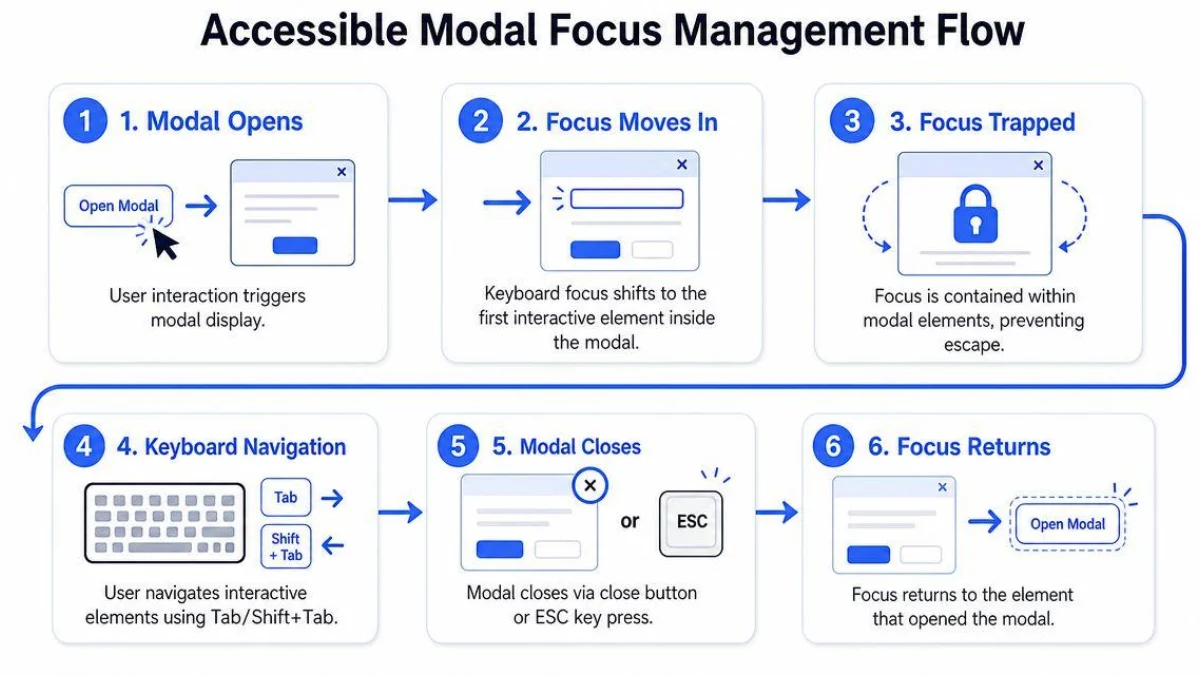
The most consequential finding appeared in an assistance panel accessible from the page interface. During the initial navigation, opening behavior was observed around early keyboard focus movement. Subsequent testing established a more important issue: once the panel was open, the operator could not complete its internal keyboard interaction or return to ordinary navigation through the attempted keys.
Tab did not produce usable progress through the panel. Shift+Tab did not restore access to the preceding page controls. Escape did not close the panel or restore the normal interaction path. Arrow-key use did not provide a functional exit from the component.
To recover from the blocked state, the operator reported needing a mouse or touch interaction. Clicking elsewhere on the page was not sufficient; the component required a direct pointer-based action.
This is materially different from an inconvenient tab order or an unfamiliar control label. A keyboard-only visitor could become unable to continue the intended task after entering the panel.
Finding Record: UX09-F01
Finding: Keyboard focus could not be released from an assistance panel using the tested standard keyboard interaction methods.
Observed result: Tab, Shift+Tab, and Escape failed to restore functional navigation or close the panel; pointer or touch interaction was required to recover.
Expected result: The panel’s intended functions and exit path should be operable through a keyboard interface.
Relevant criteria: WCAG 2.2 Success Criterion 2.1.2, No Keyboard Trap (Level A), with an associated concern under 2.1.1, Keyboard (Level A).
Severity assessment: High priority within the tested workflow because the failure blocked continued keyboard-only operation.
Evidence: Operator-reported manual test, including attempted keyboard navigation and exit actions.
Current resolution status: Unresolved in the recorded test session. No remediation or successful post-fix retest was performed.
Verification boundary: No source-code inspection, focus-event trace, accessibility-tree capture, or multi-environment reproduction was available to identify the technical cause.
Why This Behavior Conflicts With the No Keyboard Trap Requirement
WCAG 2.2 Success Criterion 2.1.2, No Keyboard Trap, requires keyboard users to have a way to move focus away from a component they can reach using the keyboard. When an exit requires an unusual method, that method must be communicated to the user.
The recorded assistance-panel behavior created the opposite experience. The operator could reach or activate the panel through keyboard navigation but could not return to the surrounding interface through the tested keyboard controls.
Within that observed workflow, the behavior provides strong evidence of a keyboard trap. It also raises a keyboard-operability concern under 2.1.1 because meaningful panel interaction or recovery required a pointing device.
These criteria are related but not identical. Keyboard operability asks whether functionality can be used without pointer-dependent input. No Keyboard Trap addresses whether focus can leave a component after entering it.
Focus Containment Is Not Always a Keyboard Trap
There is an important technical distinction. A properly implemented modal dialog may intentionally keep Tab and Shift+Tab navigation within the dialog while it remains open. This can be appropriate because the rest of the page is temporarily unavailable until the dialog is dismissed or its workflow is completed.
The WAI-ARIA Authoring Practices dialog pattern describes a modal interaction in which focus moves inside the dialog, cycles among its focusable elements, and Escape closes it. Focus normally returns to the invoking control when the dialog closes, subject to documented workflow exceptions.
Therefore, the observation that Tab cannot leave a panel is not sufficient by itself to prove an accessibility failure. It may be intentional focus containment.
The decisive problem in this case is that the tested controls did not provide a usable keyboard path through or out of the panel. Escape did not dismiss it, reverse navigation did not recover the page, and pointer input was needed to continue.
Whether the component was implemented as a modal, popover, drawer, or another pattern was not established through code inspection. The exact remediation depends on the intended interaction model.
A Separate Question: Did Focus Open the Panel Unexpectedly?
During the first exploratory pass, the assistance panel appeared when keyboard navigation began. In a later pass, a skip-to-content control became visible instead.
This difference is worth recording, but the observations do not establish that simply receiving focus always opens the panel or causes a change of context.
WCAG 2.2 Success Criterion 3.2.1, On Focus, addresses changes of context initiated when a component receives focus. An expansion of content is not necessarily a change of context, so the criterion cannot be applied correctly without understanding the exact trigger and its effect on the user.
A follow-up inspection should determine whether the panel opens through focus alone, through keyboard activation, or through a retained session state. This remains a diagnostic question, not a second confirmed failure.
Interpretation: Functional Successes Did Not Eliminate a Critical Barrier
The contrast between the successful workflows and the assistance-panel failure is the central result of this keyboard accessibility audit.
A visitor could navigate menus, search for information, open content, control audio reading, complete an interactive verification challenge, submit a contact form, and correct required-field errors. Yet the same overall experience contained a component that could block keyboard-only continuation.
That pattern illustrates why it is dangerous to reason about accessibility as a percentage of interface components that appear to work.
Consider two hypothetical interpretations of the test matrix. One says that nearly all tested areas were successful and therefore the interface is mostly accessible. The other says that the main workflows functioned in the sampled conditions, but one blocking failure remains unresolved and can interfere with keyboard-only use.
I consider the second interpretation more defensible. It preserves the positive findings without allowing them to conceal the severity of the failure.
Why a Single Blocking Component Deserves High Priority
The practical effect of a focus trap depends on when the user encounters it and whether recovery is possible without assistance. A component that prevents a keyboard-only user from leaving can interrupt unrelated tasks, even if those tasks would otherwise work correctly.
For a user who depends entirely on keyboard input, a pointer-only escape is not merely inconvenient. It may be unavailable.
WCAG’s No Keyboard Trap criterion also recognizes that such interference can affect the rest of the page, which is why the requirement has implications beyond an isolated widget.
The audit therefore treats the assistance-panel problem as a high-priority functional blocker. It does not assign a fabricated count of affected users, invent an abandonment rate, or claim that all visitors encounter the component under identical conditions.
Priority Should Reflect Task Interruption, Not Test Counts
A sensible remediation decision should consider whether the problem makes a task impossible, whether the user can recover through an accessible alternative, and whether the failing interaction can occur during important workflows.
In this study, the inability to exit the assistance panel takes priority over polishing already functional interactions because it directly prevented keyboard-only continuation in the recorded session.
This prioritization is an expert judgment based on the observed functional barrier. It is not a statistical risk estimate or a formal certification outcome.
How I Would Investigate and Correct the Assistance Panel
The report does not include a source-code diagnosis, so it would be inappropriate to identify one particular event handler, framework, or markup pattern as the proven root cause.
Several implementation errors could produce similar symptoms. Focus might be moved to an element that is not part of an operable navigation sequence. Keyboard events might be intercepted without an accessible alternative. The component could incorrectly enforce a focus boundary, fail to expose a dismiss control, or restore focus to an invalid location.
These are diagnostic hypotheses. They need to be tested against the actual component implementation rather than presented as findings.
First, Determine the Intended Interaction Pattern
The engineering team should decide whether the assistance feature is supposed to behave as a non-modal popover, a modal dialog, a navigation drawer, or an ordinary expandable section.
Each pattern has different focus-management expectations. A non-modal interface should generally allow focus to move to surrounding controls in a predictable sequence. A modal interaction can contain focus while open, but it needs a keyboard-accessible way to finish or dismiss the interaction.
Trying to combine these behaviors without a clear model can produce confusing states, especially when the component is visually overlaid on top of existing page content.
Then Verify Control Semantics and Activation
The assistance panel’s trigger and functional controls should be inspected to confirm that they use appropriate interactive semantics, expose understandable names, and respond to expected keyboard commands.
Native buttons are generally preferable to custom clickable containers when the intended action is button-like. If custom components are necessary, their keyboard behavior, role, state, and focus order must be implemented correctly.
The trigger’s expanded state should reflect whether the panel is open. The panel’s own controls should be reachable in the intended order. If the component functions as a dialog, its labeling and focus behavior should match the chosen pattern.
Adding ARIA attributes alone will not solve a broken keyboard interaction. The actual behavior must match the semantics being exposed.
Make the Exit Path Explicit and Testable
The corrected component needs a clear keyboard-accessible exit. For a modal dialog, that normally includes a visible dismissal control and Escape support, consistent with the WAI-ARIA Authoring Practices guidance.
Closing should also restore focus to a meaningful location, usually the control that opened the component. If the invoking control no longer exists or the workflow changes the page state, focus should move to another logical destination.
For a non-modal assistance panel, the user should be able to navigate through its controls and continue into the surrounding page without an artificial dead end.
The essential requirement is not a particular animation, button position, or JavaScript technique. It is that keyboard-only users can complete or leave the interaction without being forced to switch input methods.
An Escape Handler Alone Is Not a Complete Fix
It might be tempting to address the observed problem by adding a single keyboard shortcut that closes the panel. That could remove one blocking symptom, but it would not necessarily make the panel itself usable.
The internal controls still need to receive focus in a meaningful order, respond to appropriate keys, and communicate their states correctly. The dismissal control should be keyboard-accessible and focus should return logically when the panel closes.
Any remediation should be judged through the complete user workflow rather than through one passing keystroke.
A Reproducible Retest Protocol for the Blocking Component
The original target is anonymized, so the procedure below is designed for authorized testing of a comparable assistance panel or for a later retest of the same private system.
The following steps are proposed verification procedures, not additional tests claimed to have been completed in the original session.
| Retest | Procedure | Expected result |
|---|---|---|
| R01 | Reach the assistance trigger with Tab. | The trigger receives visible, predictable focus. |
| R02 | Activate the trigger using the appropriate keyboard command. | The panel opens without unexpected loss of focus. |
| R03 | Use Tab and Shift+Tab within the open panel. | All required controls are reachable in a meaningful order. |
| R04 | Activate each functional control using the keyboard. | Its intended behavior is available without pointer input. |
| R05 | Dismiss the panel using the documented keyboard method. | The panel closes and the user can continue. |
| R06 | Inspect focus immediately after dismissal. | Focus returns to the trigger or another logical destination. |
| R07 | Open and close the panel repeatedly. | No stale focus state or progressive keyboard trap appears. |
| R08 | Repeat with relevant zoom, viewport, and browser combinations. | Functionality remains available under the tested configurations. |
| R09 | Inspect accessible names, roles, states, and announcements with assistive technology. | Semantics and changes are understandable to supported users. |
Before a genuine before-and-after comparison can be published, both the pre-fix and post-fix environments should be recorded accurately. The component version, browser version, test commands, observed behavior, and any associated evidence should be preserved.
Without a completed post-fix test, this study cannot report a successful correction, improvement percentage, or resolved accessibility status.
Why I Am Not Publishing a Fabricated Before-and-After Result
A before-and-after illustration is useful only when it represents genuine observed states. The current evidence establishes a blocked keyboard workflow. It does not establish that a corrected component has been deployed or verified.
A conceptual diagram can explain the failure and intended recovery path, but it must not be labeled as a screenshot of a tested implementation or as proof of a successful remediation.
If a later retest confirms the fix, the study can be updated with actual comparison data. Until then, the unresolved status is part of the result.
Threats to Validity and Research Limitations
A focused keyboard walkthrough can reveal meaningful functional barriers, but several limitations affect how confidently the findings can be generalized.
Single-Session and Single-Operator Evidence
The observations come from one reported manual test session rather than a structured study with multiple operators. The results were recorded through the operator’s descriptions and were not independently replayed by a separate evaluator.
The study therefore supports conclusions about the reported behavior in the tested workflow, but not estimates of how frequently the problem occurs across a wider population.
Incomplete Environment Configuration
The exact browser and operating system versions, zoom level, viewport dimensions, and keyboard navigation preferences were not preserved.
These omissions limit precise environment replication. They also prevent determining whether particular behaviors depend on a browser or platform configuration.
The correct response is to record these as missing variables, not to infer that default settings were used.
No DOM, Source-Code, or Accessibility-Tree Inspection
The evaluation did not inspect the target’s markup, scripted focus transitions, event listeners, or accessibility tree. It cannot identify the proven technical root cause of the assistance-panel failure.
Similarly, successful keyboard actions do not prove that accessible names, roles, and states are correctly exposed to assistive technology.
No Screen Reader or Disability-Specific User Study
No screen reader evaluation or study with participants using different access technologies was recorded. This is a keyboard-only functional walkthrough, not a comprehensive accessibility usability study.
The distinction matters because keyboard interaction and screen reader interaction overlap but are not identical. A control can be keyboard-operable while remaining poorly labeled or confusing when announced through assistive technology.
Incomplete State and Error Coverage
The tested contact form supported successful submission and required-field correction. Other errors, such as invalid input formats, interrupted requests, and alternate verification states, were not tested.
The skip-to-content control was visible but its destination was not conclusively confirmed. Focus obstruction, contrast, target size, responsive reflow, and many other WCAG requirements were outside the scope of the recorded session.
It would therefore be inaccurate to treat the fourteen test areas as a comprehensive list of accessibility requirements.
Anonymization Limits Independent Target Verification
The target interface is not named and its URL is not disclosed. This prevents readers from independently inspecting the original implementation or verifying the specific failure against the same version.
The published methods remain useful for other authorized evaluations, but the original findings should be understood as documented first-person observations rather than independently replicated public evidence.
In my view, transparent methodological limits are part of credible technical reporting. Preserving anonymity should not require presenting an informal observation as a laboratory measurement with controls that were never used.
What UX and Engineering Teams Can Learn From This Audit
There are several practical lessons in the contrast between the successful tasks and the blocking panel.
Test Complete Workflows, Not Just Interactive Elements
A component may work during its initial activation while failing in the next state. Keyboard accessibility tests should include opening, operating, correcting, closing, and returning to the surrounding task.
For overlays and panels, exit behavior is not an optional final detail. It is part of the fundamental interaction contract.
Do Not Average Away Blocking Failures
A large number of successful checks cannot establish conformance when an important unresolved keyboard trap remains. Successful task observations and blocking findings should be shown separately, with their scope and impact clearly explained.
Metrics may support accessibility management, but they should not obscure an inability to complete a fundamental task.
Treat Custom Assistance Features as Functional Interfaces
Accessibility features and assistance tools are often introduced to help users, but their intended purpose does not exempt them from keyboard requirements.
An assistance panel can make an interface less usable if it introduces inaccessible controls or prevents users from leaving. Such components deserve the same interaction testing as navigation, forms, and ordinary dialogs.
Separate Direct Observation From Technical Explanation
The operator’s inability to exit the panel was observed. The internal cause was not. The diagnosis could involve focus management, keyboard event handling, state transitions, or control semantics.
I would preserve this distinction until the code and actual focus behavior have been inspected.
Make Keyboard Exit Paths Part of Regression Testing
A repeatable component-level test should verify that a user can enter, operate, and leave an interaction after every relevant change. This is especially valuable for expandable help features, modal interfaces, menus, custom media controls, and other elements that alter the focus sequence.
The goal is not merely to prevent the exact same bug from returning, but to make keyboard continuity a maintained product requirement.
Frequently Asked Questions About Keyboard Accessibility Audits
What is a keyboard accessibility audit?
A keyboard accessibility audit evaluates whether a web interface can be navigated and operated using a keyboard interface without relying on a mouse or other pointing device. It can examine focus order, visible focus, control activation, form interaction, dialog behavior, and the ability to leave components. A focused keyboard audit is not equivalent to a full WCAG conformance evaluation.
What is a keyboard focus trap?
A keyboard focus trap occurs when a user can move focus into a component but cannot move it away using an appropriate keyboard method. A properly implemented modal dialog can intentionally contain focus while open, but it must provide an accessible way to complete or dismiss the interaction. A panel requiring mouse input for recovery presents a serious keyboard accessibility concern.
Does every panel have to close with Escape?
Not every interface component is required to use Escape as its dismissal mechanism. The appropriate behavior depends on the interaction pattern. However, keyboard users must have a way to leave a component, and unusual exit commands must be communicated when required by WCAG. The WAI-ARIA modal dialog pattern specifically describes Escape as the expected close command.
Does passing keyboard tests mean a website meets WCAG 2.2 AA?
No. Successful keyboard tasks provide useful evidence about those interactions, but WCAG 2.2 AA includes many additional requirements involving semantics, perception, structure, contrast, input assistance, and other behaviors. A complete conformance assessment requires more extensive coverage.
Is keyboard testing the same as screen reader testing?
No. Both involve keyboard interaction in many environments, but screen readers also depend on programmatically exposed information such as accessible names, roles, states, descriptions, and reading order. A control can respond to the keyboard while being difficult to understand with a screen reader.
Can an accessibility study be published without identifying the tested website?
Yes, provided the research honestly describes its methods, evidence, authorization, and limitations. An anonymous study can demonstrate an interaction problem and share reusable testing procedures. However, withholding the target prevents independent verification of the exact original interface and should be acknowledged as a reproducibility limitation.
What should be tested after fixing a keyboard trap?
The retest should verify keyboard entry, internal control operation, focus order, accessible dismissal, and appropriate focus restoration. It should also check repeated opening and closing, relevant browser and viewport configurations, and assistive-technology behavior. A problem should not be reported as resolved until those checks have actually been completed.
Conclusion: Accessibility Depends on Whether the User Can Continue
This keyboard accessibility audit documented an interface in which many common tasks worked without a pointing device. Navigation, search, content selection, article controls, cookie preferences, interactive verification, and contact form completion were all usable in the recorded workflows.
Those successful interactions matter. They demonstrate that keyboard support existed across several distinct types of functionality.
But the audit also identified an assistance panel that prevented the operator from navigating or leaving through the tested keyboard methods. The failure interrupted the interaction in a way that the surrounding successful tasks could not compensate for.
I consider this the central lesson of the study: keyboard accessibility is not merely the presence of focusable elements or the successful completion of a collection of unrelated checks. It is the continuity of a user’s ability to understand, operate, recover from, and leave an interaction without being forced to change input methods.
The unresolved assistance-panel issue requires implementation-level investigation and a documented retest. The wider interface also needs additional accessibility evaluation before anyone can make a broad WCAG conformance claim.
This research intentionally stops where the evidence stops. It documents what was observed, explains why the blocking behavior matters, and provides a repeatable procedure for evaluating the relevant interaction patterns.
For accessibility engineering, that is a more useful outcome than an unsupported declaration that an interface is accessible simply because most of its tested controls appeared to work.
Explore related research and professional analysis in the UX & UI Design Articles collection.